


Arduino UNO based LCD Dinosaur Game
Introduction
Interactive games are an excellent way to learn embedded systems and microcontroller programming because they combine hardware interfacing, user input handling, display control, and programming logic into a single project. Building a simple game on an Arduino helps beginners understand how software interacts with hardware in real time while making the learning process more engaging and enjoyable.

In this project, an Arduino UNO is used to implement a Dinosaur Game on a 16×2 LCD display. The player controls a dinosaur using a push button to jump over incoming obstacles while the game continuously updates the display. As the game progresses, the obstacle speed increases, making the gameplay more challenging and improving the player's reaction time.
The project demonstrates several important embedded system concepts, including LCD interfacing in 4-bit mode, custom character creation, push-button input handling, random obstacle generation, non-blocking timing using millis(), collision detection, score tracking, and dynamic game speed control. It provides an effective hands-on learning experience for students, hobbyists, and beginners interested in Arduino programming.
What You'll Learn
By completing this project, you will learn:
How to interface a 16×2 LCD with an Arduino UNO using the LiquidCrystal library.
How to create and display custom LCD characters for the dinosaur, obstacles, and birds.
How to read user input using a push button to control the dinosaur's jump.
How to generate random obstacles to make the gameplay less predictable.
How to use the millis() function for non-blocking timing instead of relying entirely on delay().
How to implement collision detection between the dinosaur and obstacles.
How to increase the game's difficulty by gradually increasing the obstacle speed.
How to develop a simple real-time LCD game using Arduino programming techniques.
Components Required
Component | Quantity | Purpose |
Arduino UNO | 1 | Executes the game logic, processes button input, and controls the LCD display. |
16×2 LCD Display | 1 | Displays the dinosaur, obstacles, score, and game messages. |
Push Button | 1 | Allows the player to make the dinosaur jump over obstacles. |
Breadboard | 1 | Provides a convenient platform for assembling the circuit without soldering. |
10 kΩ Resistor | 1 | Acts as a pull-down resistor for the push button to ensure stable input readings. |
220 Ω Resistor | 1 | Limits the current supplied to the LCD backlight, protecting the display. |
Jumper Wires | As Required | Connect the Arduino UNO, LCD, push button, and other components together. |
USB Cable | 1 | Powers the Arduino UNO and uploads the program from the computer. |
Project Overview
The Arduino UNO based LCD Dinosaur Game is an interactive embedded systems project inspired by the popular offline dinosaur game found in web browsers. The game is displayed on a 16×2 LCD, where the player controls a custom dinosaur character using a single push button. The objective is to jump over randomly generated obstacles and survive for as long as possible while achieving the highest score.
When the Arduino is powered on, the dinosaur appears on the LCD and obstacles begin moving from the right side of the display toward the player. Depending on the randomly selected obstacle type, either tree branches or a flying bird is generated, making the gameplay less predictable. The player must press the push button at the correct time to make the dinosaur jump and avoid collisions.

As the game progresses, the obstacle movement speed gradually increases, making the game more challenging over time. The player's score is continuously displayed on the LCD, and if the dinosaur collides with an obstacle, a "GAME OVER" message is shown before the game restarts.
This project combines LCD interfacing, custom character generation, push-button input handling, random obstacle generation, collision detection, score tracking, and real-time game control using the millis() function, making it an excellent learning project for beginners interested in Arduino programming and embedded systems.
Circuit Diagram
The Arduino UNO serves as the central controller of the LCD Dinosaur Game, coordinating communication between the 16×2 LCD display and the push button while executing the game logic. The LCD operates in 4-bit mode, reducing the number of pins required and allowing the Arduino to efficiently display the dinosaur, obstacles, score, and game messages.

A push button is connected to the Arduino to control the dinosaur's jump whenever the player presses it. The circuit also includes a 10 kΩ pull-down resistor, which ensures stable button readings by preventing floating input signals when the button is not pressed.
Additionally, a 220 Ω resistor is connected to the LCD backlight to limit the current supplied to the display, protecting it from excessive current. All components are assembled on a breadboard using jumper wires, resulting in a compact and organized embedded system that can be implemented both in simulation and on real hardware.
Circuit Connections
Component | Arduino Connection | Purpose |
LCD RS | Digital Pin 12 | Selects whether the LCD receives commands or display data. |
LCD Enable (E) | Digital Pin 11 | Enables communication between the Arduino and the LCD. |
LCD Data Pin D4 | Digital Pin 5 | Transfers data to the LCD in 4-bit mode. |
LCD Data Pin D5 | Digital Pin 4 | Transfers data to the LCD in 4-bit mode. |
LCD Data Pin D6 | Digital Pin 3 | Transfers data to the LCD in 4-bit mode. |
LCD Data Pin D7 | Digital Pin 2 | Transfers data to the LCD in 4-bit mode. |
LCD VSS | GND | Provides the ground reference for the LCD. |
LCD VDD | 5 V | Supplies operating power to the LCD module. |
LCD RW | GND | Keeps the LCD in write mode. |
LCD VO | 10 kΩ Potentiometer | Adjusts the contrast of the LCD display. |
LCD LED+ | 5 V through a 220 Ω resistor | Powers the LCD backlight while limiting the current. |
LCD LED− | GND | Completes the LCD backlight circuit. |
Push Button | Digital Pin 13 | Detects the player's input to make the dinosaur jump. |
Push Button | 5 V and GND (through a 10 kΩ pull-down resistor) | Ensures reliable input by preventing floating signals when the button is not pressed. |
Working of the Connections
The Arduino UNO acts as the brain of the Dinosaur Game by continuously executing the game logic and controlling all connected hardware components. It communicates with the 16×2 LCD, reads the push button input, generates obstacles, updates the score, and detects collisions throughout the game.
The 16×2 LCD operates in 4-bit mode, allowing the Arduino to efficiently display custom characters such as the dinosaur, tree branches, and flying birds while using fewer input/output pins. The LCD also displays the player's score and game messages such as "GAME OVER", providing continuous visual feedback during gameplay.
The push button serves as the player's control input. When the button is pressed, the Arduino detects the signal on Digital Pin 13 and moves the dinosaur to the upper row of the LCD, simulating a jump. When the button is released, the dinosaur returns to its original position, allowing the player to avoid incoming obstacles.
A 10 kΩ pull-down resistor is connected to the push button to ensure a stable LOW signal when the button is not pressed, preventing false triggering caused by floating inputs. The 220 Ω resistor limits the current supplied to the LCD backlight, protecting the display while maintaining proper brightness.
The game uses the millis() function to control obstacle movement, animation timing, and score updates without relying entirely on blocking delays. This enables smoother gameplay and allows multiple game events to occur simultaneously, resulting in a more responsive and interactive embedded system.
Source Code
The complete Arduino source code for the Arduino UNO based LCD Dinosaur Game is provided as a downloadable file below. The program is developed using the Arduino IDE and utilizes the LiquidCrystal library to control the 16×2 LCD display. The code implements dinosaur animation, obstacle generation, collision detection, score tracking, and dynamic game speed control to create an interactive gaming experience.
Code Explanation
Library Inclusion and Global Variable Declaration


The program begins by including the LiquidCrystal library, which provides the functions required to interface the Arduino UNO with the 16×2 LCD display. An LCD object is then created by specifying the Arduino pins connected to the display in 4-bit mode, reducing the number of digital I/O pins required.
The program also defines several custom LCD characters using byte arrays. These custom characters represent different parts of the dinosaur, walking animation frames, tree obstacles, and flying bird obstacles. Since the standard LCD supports only a limited number of characters, creating custom characters allows simple game graphics to be displayed.
The global variables are declared to manage different aspects of the game, including the dinosaur's position, obstacle movement, animation timing, score calculation, game speed, and collision detection. Additional timing variables are used with the millis() function to create smooth animations without relying entirely on blocking delays.
setup() Function
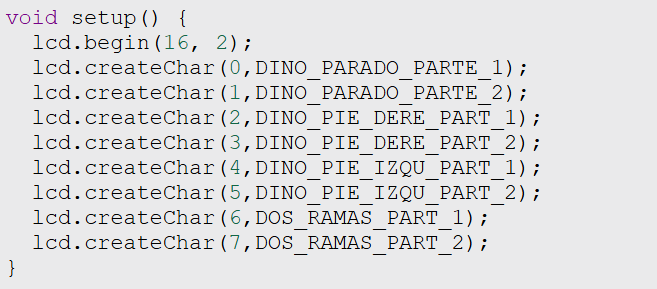
The setup() function is executed only once when the Arduino UNO is powered on or reset. Its primary purpose is to initialize the LCD display and prepare all the custom characters required for the game before gameplay begins.
First, the LCD is initialized in 16×2 mode using the lcd.begin(16, 2) function. This configures the display so that it can show two rows of sixteen characters.
Next, the lcd.createChar() function is used to load eight custom characters into the LCD's Character Generator RAM (CGRAM). These characters represent different parts of the dinosaur in various walking positions, tree obstacles, and other game objects. Since the LCD can store only eight custom characters at a time, these are loaded during startup before the game begins.
After completing the initialization process, the Arduino enters the loop() function, where the game continuously runs by updating the display, moving obstacles, detecting button presses, and checking for collisions.
loop() Function


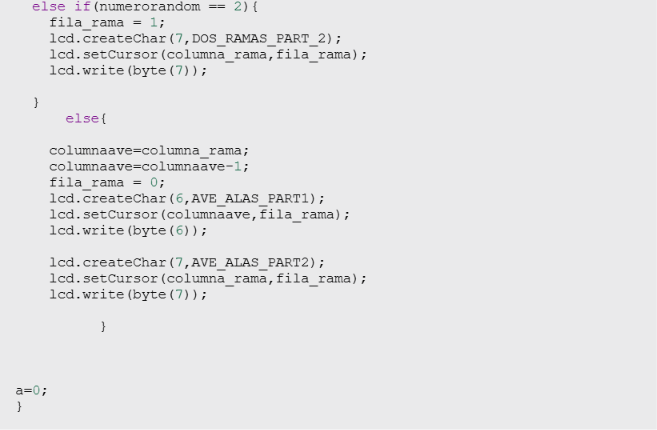


The loop() function is the core of the Arduino LCD Dinosaur Game and executes continuously while the Arduino UNO remains powered. It is responsible for controlling every aspect of the game, including dinosaur animation, obstacle generation, obstacle movement, jump detection, collision checking, score calculation, and game speed.
At the beginning of the loop, the program uses the millis() function to create non-blocking timers for different game events. This approach allows multiple tasks, such as dinosaur animation, obstacle movement, and score updates, to occur simultaneously without pausing the entire program using long delay() functions.
The dinosaur animation is created by alternating between different custom LCD characters, producing a walking effect while the player remains on the ground. Meanwhile, obstacles continuously move from the right side of the LCD toward the left. Whenever an obstacle reaches the edge of the display, it is repositioned to the starting column, and a new obstacle type is selected randomly, making the gameplay less predictable.
The push button connected to the Arduino is continuously monitored throughout the loop. When the button is pressed, the dinosaur jumps to the upper row of the LCD to avoid ground obstacles. When the button is released, the dinosaur returns to the lower row and continues running.
The program continuously checks whether the dinosaur collides with either a ground obstacle or a flying bird. If a collision is detected, the LCD displays a "GAME OVER" message, resets the obstacle position and game speed, clears the current score, and prepares the game for a new attempt.
The player's score is updated periodically as long as the game continues. To increase the game's difficulty, the obstacle movement delay is gradually reduced, causing the obstacles to move faster as the player survives for a longer period.
Finally, the program continuously refreshes the LCD display and monitors the button state to ensure smooth gameplay, responsive controls, and real-time updates throughout the game.
Simulation Output
The Arduino UNO Dinosaur Game was successfully simulated in Tinkercad. After powering the circuit, the dinosaur appears on the 16×2 LCD display and automatically begins running. Obstacles such as trees and birds continuously move from the right side of the display toward the dinosaur, creating a simple endless runner game.

When the push button is pressed, the dinosaur jumps to the upper row of the LCD, allowing it to avoid ground obstacles. The score increases continuously as the player survives, while the
obstacle speed gradually increases to make the game progressively more challenging.

If the dinosaur collides with an obstacle, the LCD immediately displays a "GAME OVER" message. The game variables are then reset, allowing the player to start a new game without restarting the Arduino.
Applications
The Arduino UNO based LCD Dinosaur Game can be used in a variety of educational and practical applications, including:
Learning Arduino programming through an interactive game project.
Understanding LCD interfacing using the LiquidCrystal library.
Demonstrating embedded system concepts such as animation, timing, and collision detection.
Teaching custom character creation on 16×2 LCD displays.
Mini projects for students, hobbyists, and Arduino beginners.
Embedded systems laboratory demonstrations and academic workshops.
Advantages
Simple and beginner-friendly Arduino project.
Uses inexpensive and easily available electronic components.
Demonstrates multiple embedded programming concepts in a single application.
Implements non-blocking timing using the millis() function.
Easily customizable with additional obstacles and gameplay features.
Suitable for academic projects and embedded systems learning.
Future Improvements
The project can be enhanced further by implementing the following features:
Add multiple obstacle types with different movement patterns.
Display and store the highest score using EEPROM.
Include sound effects with different tones for jumping and collisions.
Introduce multiple difficulty levels and increasing game speed.
Add multiple lives or health points before ending the game.
Replace the push button with additional controls or sensors for more interactive gameplay.
Conclusion
The Arduino UNO based LCD Dinosaur Game demonstrates how a simple microcontroller can be used to develop an interactive embedded gaming application. By combining a 16×2 LCD display, custom LCD characters, push-button input, obstacle generation, collision detection, and score tracking, the project successfully recreates a simplified version of the classic dinosaur runner game.
This project provides an excellent platform for learning Arduino programming, LCD interfacing, real-time control, and embedded system design. It also serves as a solid foundation for developing more advanced game-based embedded applications with additional features and enhanced gameplay.
Comments